An AI making day for primary schools
Every pupil invents a game. AI builds it while they watch.
Pupils draw or describe a game, a song, an app, a website, a story or a moving art toy. Make Day AI turns it into something they can play in about a minute. Then they change it, explore its real code, and play the whole class's creations on the board.
- 👩🏫 Run by your own teachers
- 🔒 No pupil accounts or names
- 📱 iPads, Chromebooks or laptops
- 🎒 Ages 7–11 (works from 5 to 16)
See it
A Make Day in two minutes
How a Make Day works
From a pencil sketch to a game they can play, in one lesson
Each class gets 45 to 60 minutes. Your teacher runs it with the guide and worksheets we send, and every pupil leaves with something they invented and can keep playing at home.
Invent it on paper
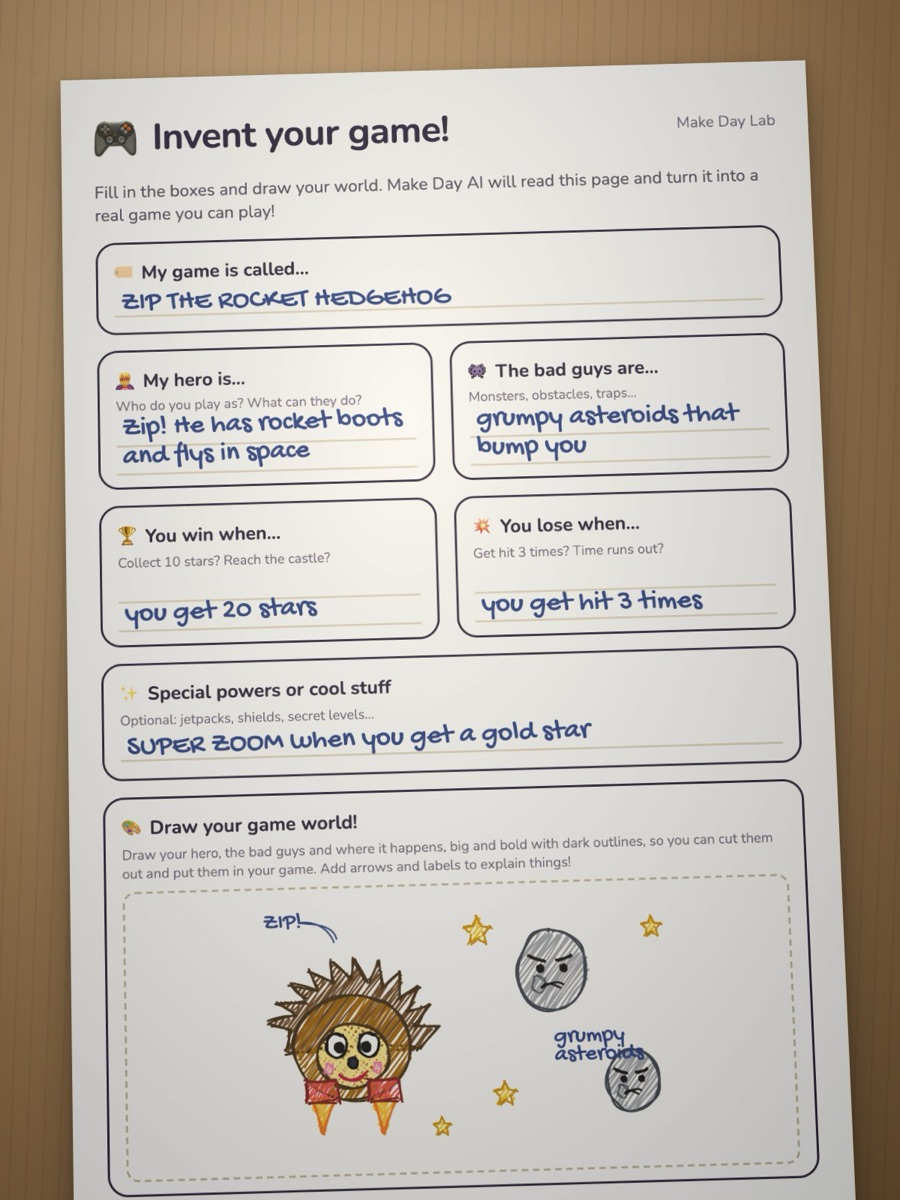
Pupils fill in a worksheet for their lab: what it's called, who the hero is, how you win and lose, and the special powers. Then they draw it, big and bold. They can type an idea instead, or press Surprise me.
Cut out the drawing
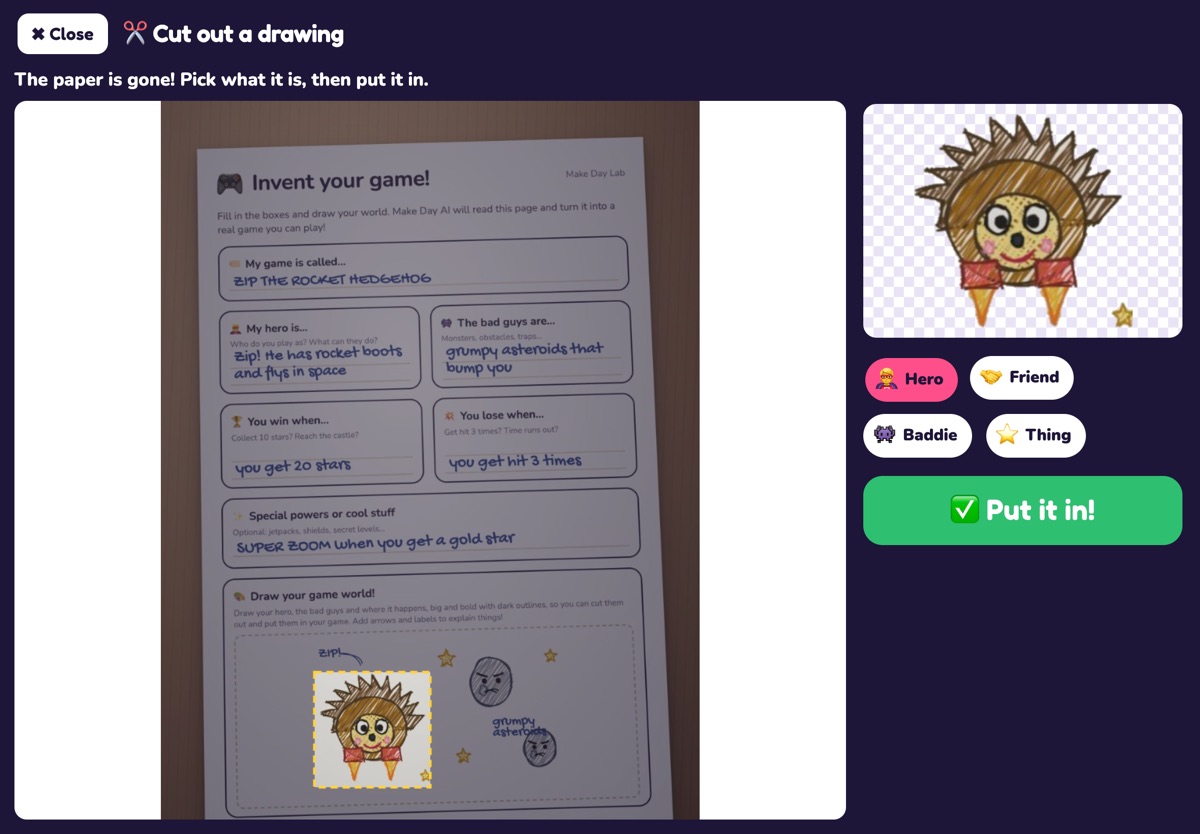
They photograph the page and drag a box round their drawing. The paper disappears and the drawing becomes the hero, a friend, a baddie or a thing in their creation. Every photo is checked first, and photos of faces are turned away.
Watch it being coded
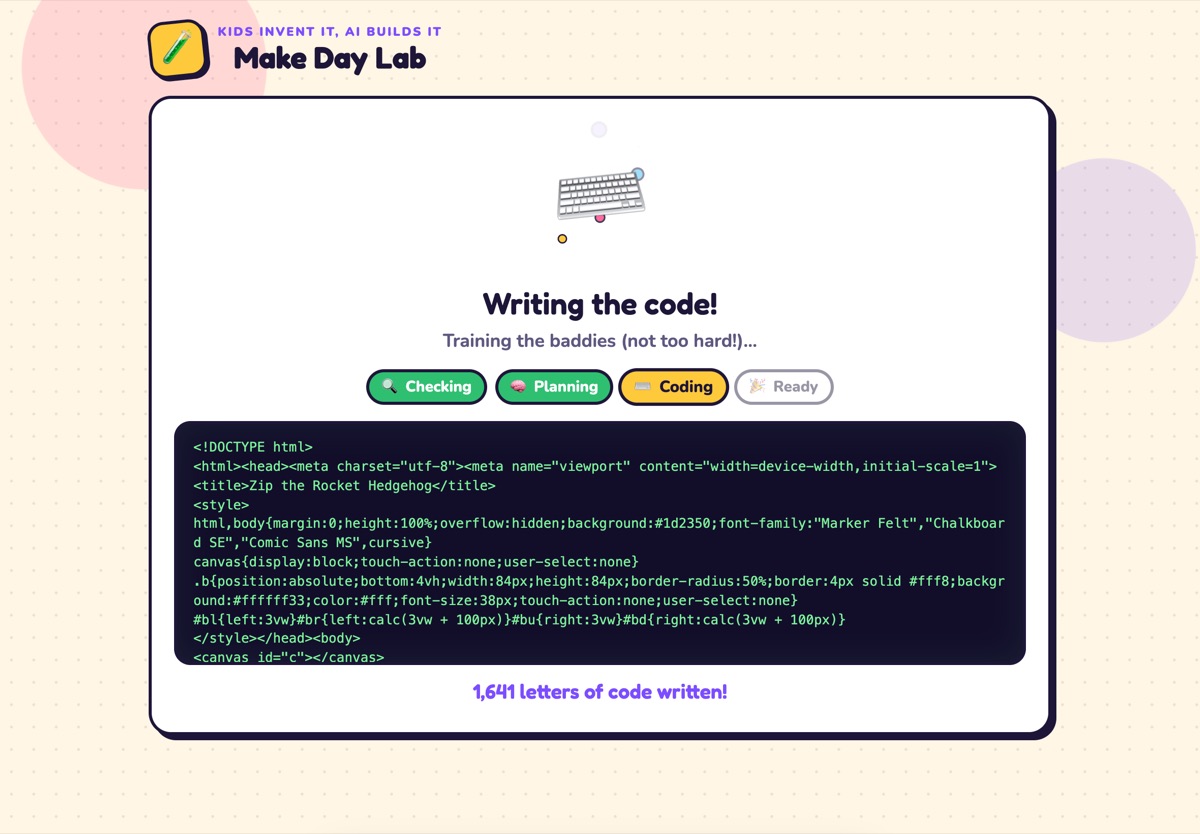
The AI reads the page, rules and labels included, and writes the code while the class watches it appear, line by line. It takes about a minute. Then a pretend player tests it, and any crash is fixed before the pupil sees it.
Play it, change it, understand it
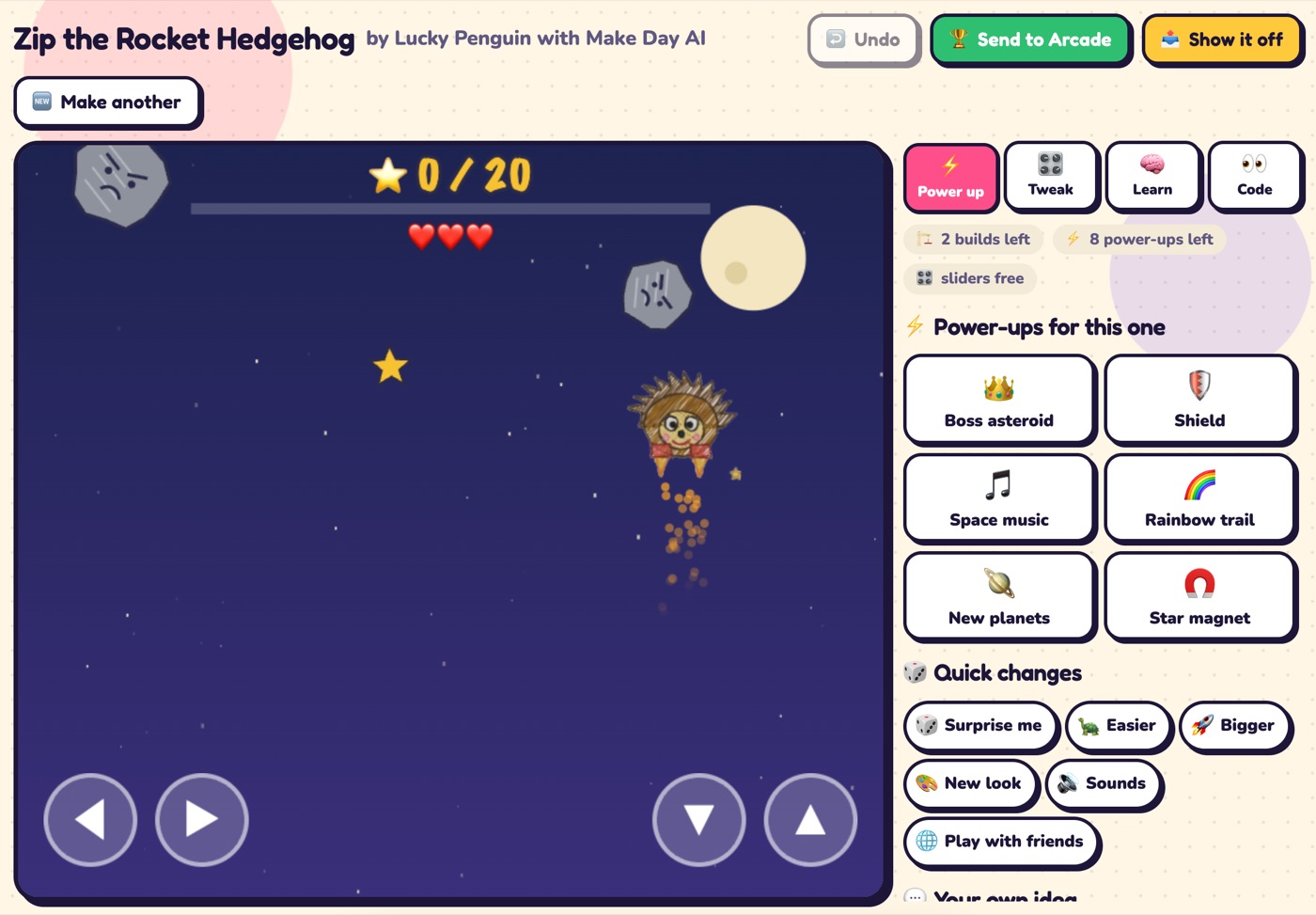
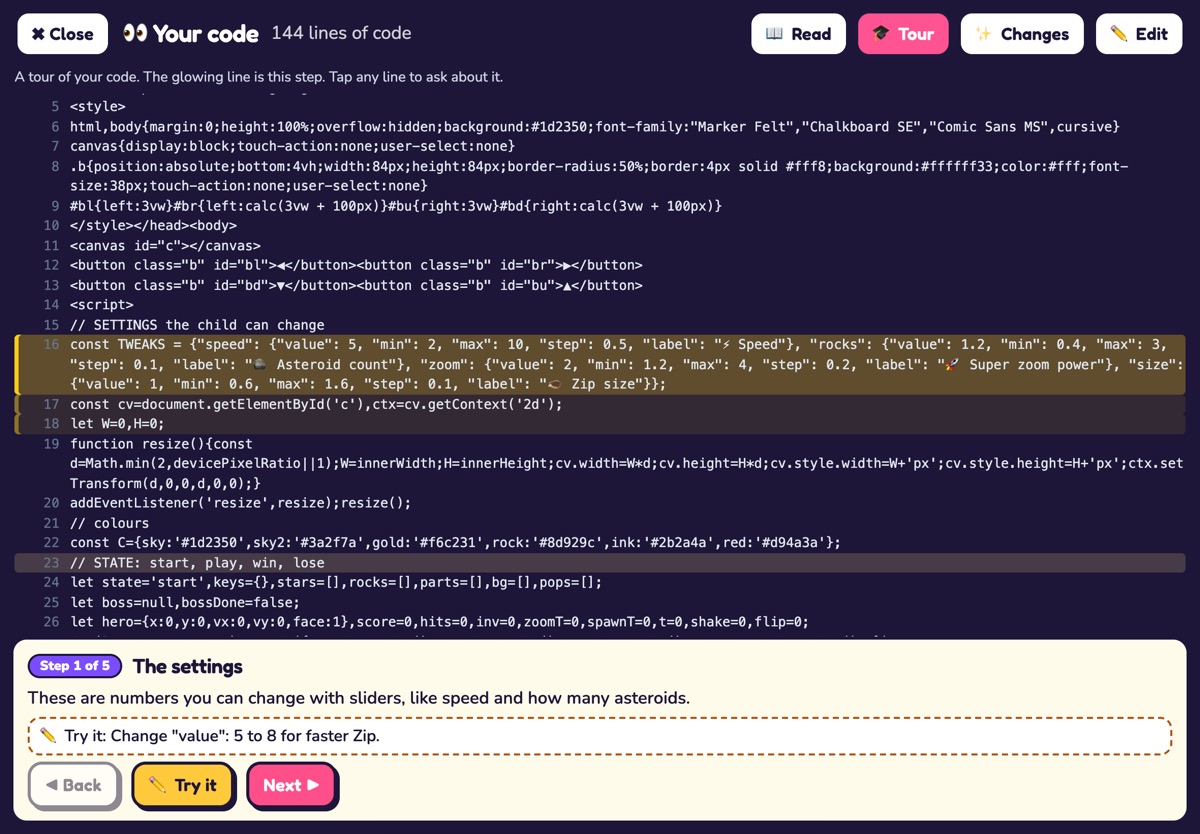
Each creation comes with six power-ups written for it, quick changes like Easier or Bigger, and sliders that change the numbers in the code while it runs. A guided tour shows how their own code works, and any line can be explained in a sentence.
Show it off
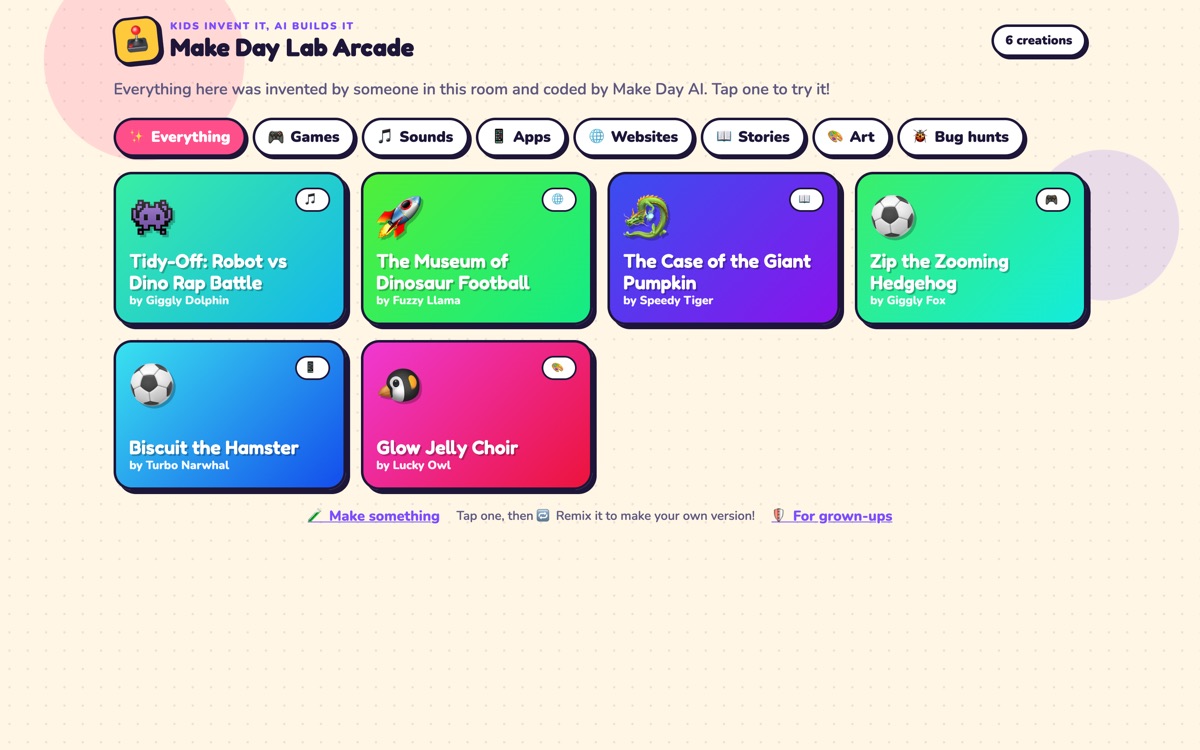
Creations go to the class Arcade on your board once a check has read the words inside them, so everyone can play each other's. Families get a link and QR code to play at home, and pupils can save their creation as a file.
Six labs
Not just games
Every lab can use pupils' drawings. Tap one to play it: these are samples we made with the lab, each from a one-line idea.
🎮 Game Lab
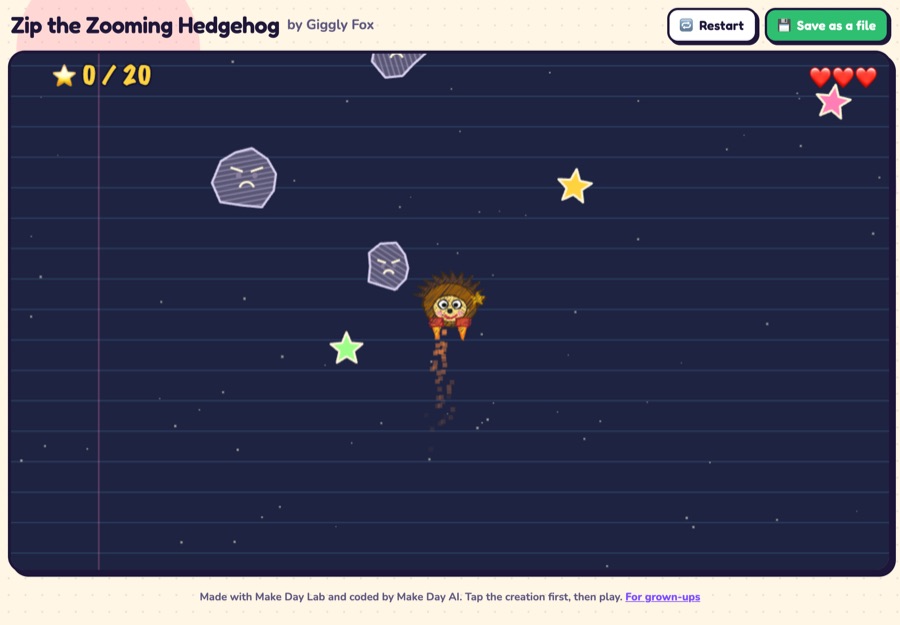
Zip the Zooming Hedgehog
Platformers, racers, puzzles, shooters with friendly blasters, even 3D worlds.
Play it ▶
🎵 Sound Lab
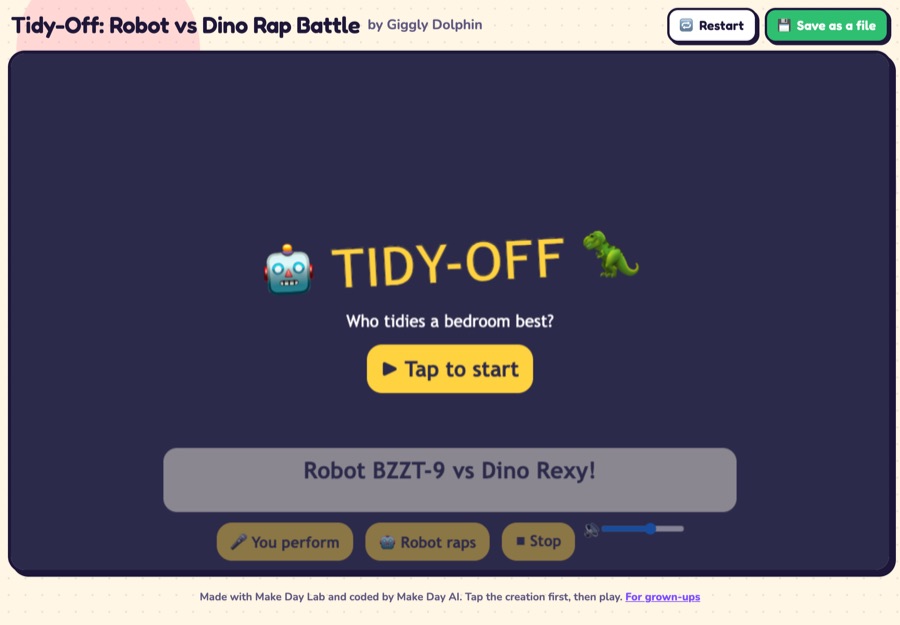
Tidy-Off: Robot vs Dino
Friendly rap battles, beat makers, songs and invented instruments, all made from code.
Play it ▶
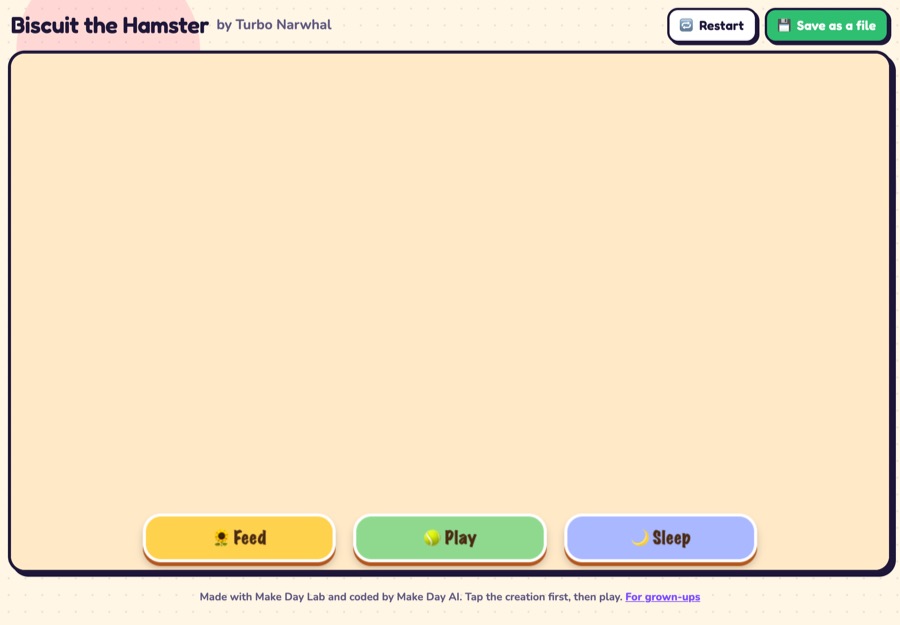
📱 App Lab
Biscuit the Hamster
Virtual pets, quizzes, trainers and generators, designed like real apps.
Play it ▶
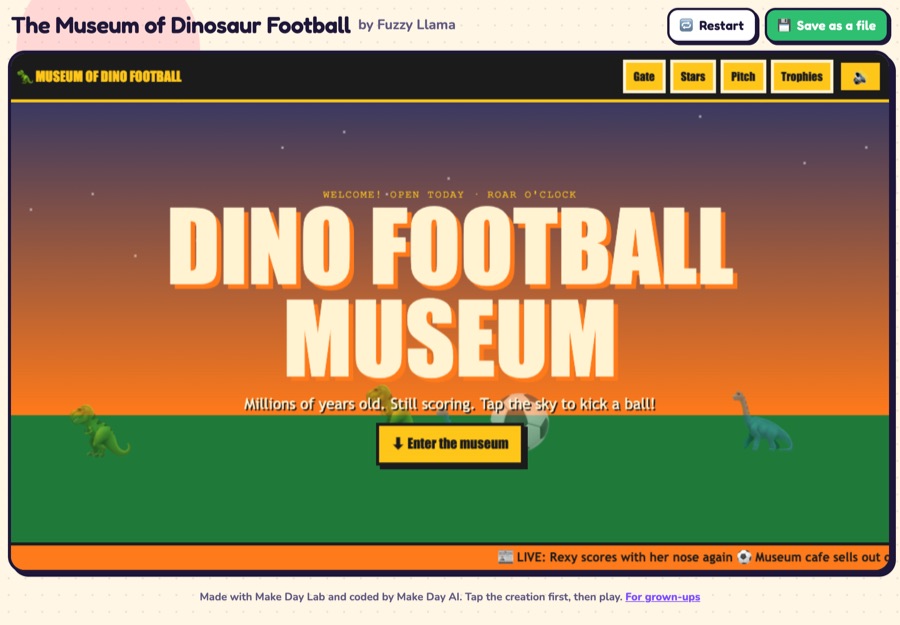
🌐 Website Lab
The Museum of Dinosaur Football
Websites with real things to do in every corner: museums, shops, worlds to explore.
Play it ▶
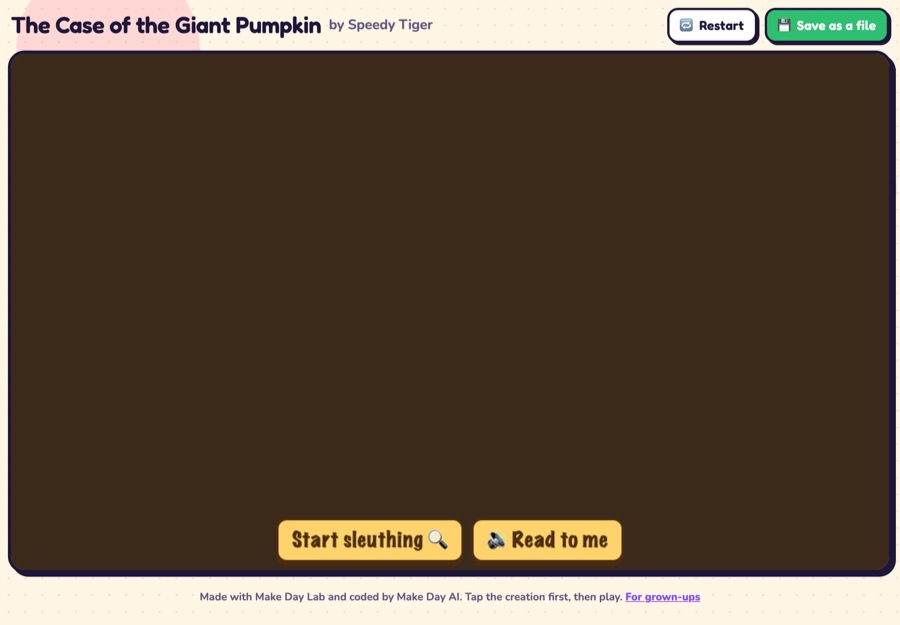
📖 Story Lab
The Case of the Giant Pumpkin
Choose-your-path adventures, clue-hunting mysteries and comics, with Read to me.
Play it ▶
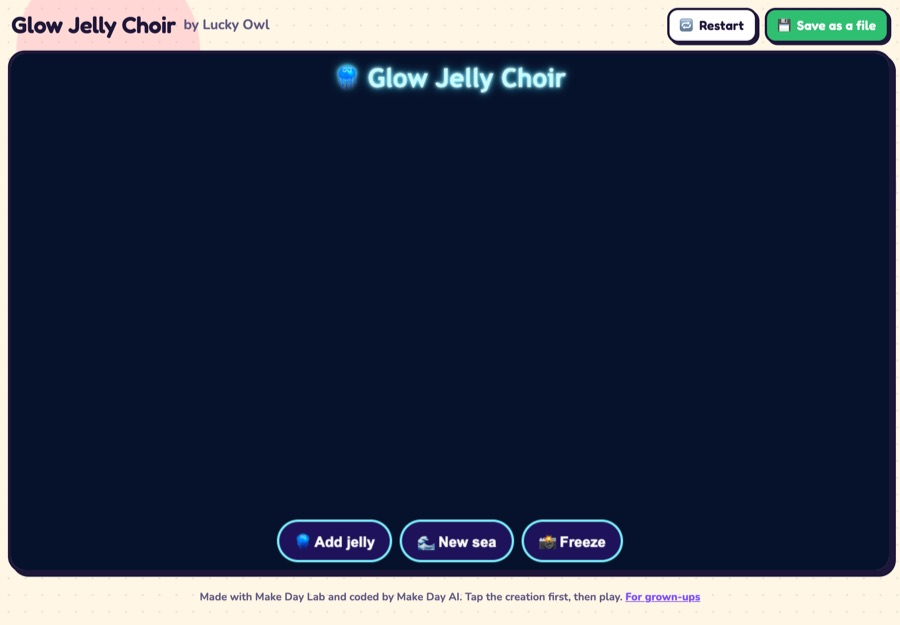
🎨 Art Lab
Glow Jelly Choir
Moving art and art toys: kaleidoscopes, sand gardens, marble runs, sculptures.
Play it ▶
What pupils learn
A computing lesson they'll talk about at home
The AI writes the code, so the thinking stays with the pupil: inventing the rules, testing what was built, and changing it until it's right. It links to KS2 computing: designing and debugging programs, using variables, and explaining how a program works.
Rules, goals and characters
Writing "you win when you get 20 stars" and seeing it become the game is a first lesson in specifying a program.
Sliders that change the code
Every creation has settings like speed or gravity. Moving a slider changes the number in the code, live.
A tour of their own code
Four to six steps through the lines that matter, and any line explained in one sentence for their age.
Bugs, found and explained
When something breaks, the lab shows what went wrong and how it was fixed. Pupils can edit the code and run their own fix.
Safety
Built for your safeguarding lead's questions
Make Day Lab is mapped, standard by standard, against the DfE's Generative AI: product safety standards, and follows our AI provider's rules for products used by under-18s.
- No accounts, no namesPupils type a class code. Each tablet gets a random name like "Clever Gecko". Pupils are told never to type their name, school or address.
- Every idea and photo checked firstBefore anything is built, a second AI reads the words and photos. Faces, personal details, unkind or unsafe ideas are turned away with a kind message. If the check can't run, nothing is built.
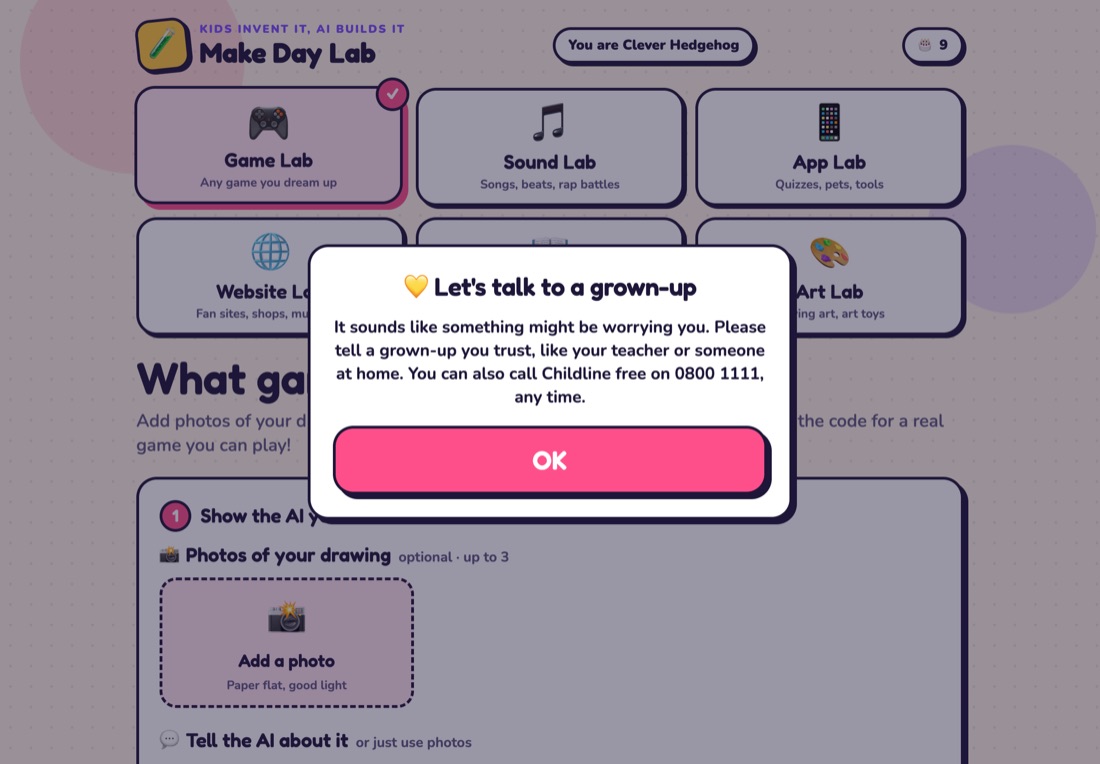
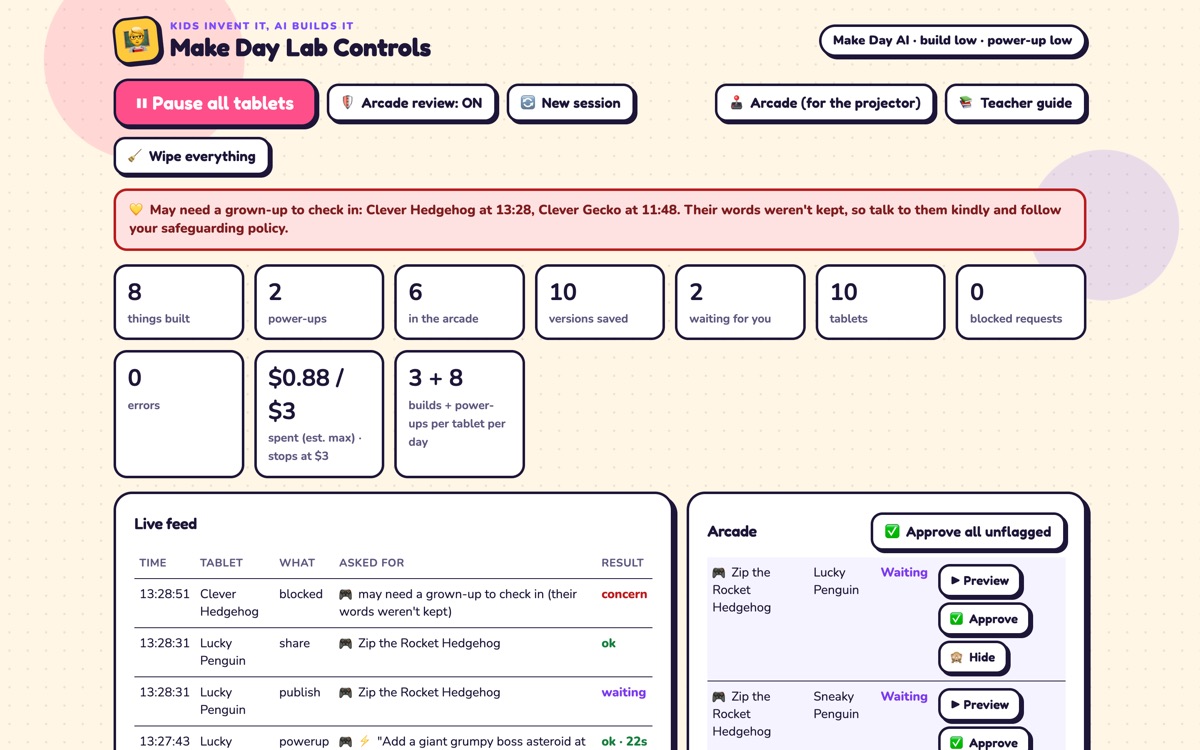
- A pupil who seems worried is noticedIf a pupil writes something that suggests they're at risk, they see a caring message with Childline's number, and the teacher's dashboard shows a flag straight away.
- Creations run sealed offNo internet, no chat, no links, no camera or microphone. Nothing reaches the class Arcade until a check has read the words inside it.
- The teacher stays in chargePause every tablet, hide anything, start a new group, and see every request as it happens.
Price
One price for the whole school day
£295 per school day
Up to four classes, about 120 pupils, all six labs. The AI is included.
- Class codes for your day, ready before you start
- A teacher guide for a 45 to 60 minute session, and printable worksheets for every lab
- The class Arcade for your board
- Family links and QR codes that work for 30 days, and every creation as a file for school
- A 20-minute setup call, including a check that your web filter lets the lab through
- The safety and data pack for your DSL and data protection officer
- An invoice to pay by bank transfer, no card needed
Booking for British Science Week or the end of term? Say which dates and we'll hold them.
Try it yourself first, free
Open the lab and make something in two minutes: describe a game, or photograph a drawing. No sign-up.
Three builds per device. The link below fills in the code for you.
Questions
What schools ask us
Who runs it on the day?
Your own teachers. The lab explains itself to pupils, and the teacher guide has a plan for a 45 to 60 minute session with three short mini-lessons. We do a 20-minute call with you beforehand, and we're on email if anything comes up. Because nobody from outside comes in, there's no visitor to check.
What do we need?
A web browser on iPads, Chromebooks or laptops, one per pupil or one per pair, and your board or projector for the Arcade. Nothing to install. A phone or tablet camera helps for photographing drawings, but pupils can type their ideas instead.
Will our web filter block it?
It might. We send you the lab's address before your day so your IT support can allow it, and we test it with you on the setup call.
Our pupils are under 13. Is the AI allowed for them?
Yes. Pupils never use a chatbot or an AI app with an account. Make Day Lab uses an AI model through its provider's business service, which allows products for under-18s only with safeguards: telling users it's an AI, checking what goes in and what comes out, and adult controls. The lab does all of these. Pupils can't chat with the AI. They describe a creation, and the lab builds it.
What happens to pupils' work and data?
We don't collect names, emails or accounts. Photos go to the AI for that one request and aren't stored; a drawing a pupil cuts out becomes part of their creation. Typed ideas are cleared from the log after 7 days. Creations and family links stay up for 30 days after your day, then we delete everything, after giving you a file of every creation. Our AI provider doesn't use what pupils make to train its AI. The full detail is on the safety and data page.
What ages is it for?
It's built for 7 to 11 year olds, and works from 5 to 16. Pupils tap their age at the start, and the lab pitches the words, the controls and the coding lessons to it. The age stays on the tablet.
What if the AI gets something wrong?
Every build is checked and test-played before a pupil sees it, and crashes are fixed automatically for free. If a pupil finds a bug later, one tap fixes it, and the lab explains what was wrong. Anything going to the Arcade is checked first, and teachers can hide anything at any time. Like any AI, it can make mistakes, so pupils are told to test what it makes and tell a grown-up if something seems wrong.
Can we book more than one day?
Yes. Each school day is £295, so a whole Science Week of five days is £1,475. Ask and we'll hold your dates.
How do we pay?
After you book, we send an invoice from RDZZ LTD, payable by bank transfer within 30 days. If the lab can't run on your day because of a problem on our side, we rebook you free or refund you in full.
Is it accessible?
It works with touch, mouse or keyboard, uses large buttons, and the Story Lab reads aloud. It doesn't yet have a single-switch mode. If you have pupils who need one, tell us before your day.
Give every pupil the day they make their own game.
£295 for the whole school day. Try the lab yourself first.